

- How the Public.com connection works and what it can trade
- What you need before you start
- How to accept the disclosures and authorize over OAuth
- How to verify positions, buying power, and orders after connecting
- How orders behave, how to troubleshoot, and how to disconnect
How the Public.com Connection Works
Scalar Field connects to Public.com over OAuth. You log in on Public.com’s own site, and Public.com returns a scoped authorization code that Scalar Field exchanges for an access token on the server. Your login credentials are never shared with or stored by Scalar Field. Everything happens in a centered popup window. There is no extension to install and nothing to configure in your browser, which makes this the simplest of the brokerage connections. The authorization request asks Public.com for four scopes:openid to identify the account, marketdata for quotes, and trading.read and trading.write to read positions and place orders. That last scope is what allows an agent to trade, so it is worth knowing you granted it.
That last row matters. The integration is explicitly in beta, so it may behave unexpectedly or experience downtime — worth knowing before you point real capital at it. Connecting is open to everyone, on any plan.
Before You Start
You do not need a desktop-only browser here. Because there is no extension involved, the popup flow works in any modern browser, and the same-tab fallback covers the cases where popups are blocked entirely.
Step 1: Open Your Portfolio
Sign in to Scalar Field and click Portfolio in the left sidebar, or go directly toscalarfield.io/portfolio.
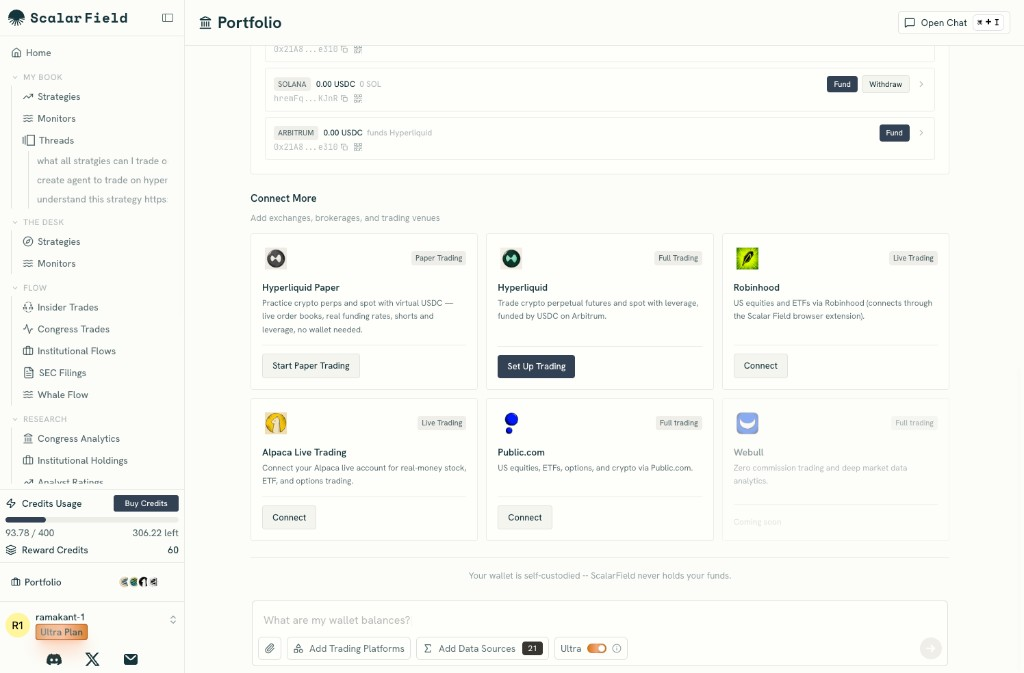
Scroll to the Connect More section, headed “Add exchanges, brokerages, and trading venues.” Every available venue lives here.
Step 2: Click Connect on the Public.com Card
Find the Public.com card, described as “US equities, ETFs, options, and crypto via Public.com.” It carries a Full trading badge, since this connects a real brokerage account rather than a paper one. Click Connect. The disclosures modal opens.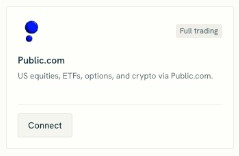
Step 3: Review and Accept the Disclosures
The modal is headed Connect Public.com, with the subtitle “Review and acknowledge before connecting your Public.com brokerage account.” It presents three disclosures in a single scrollable panel. Only the first two are visible at rest, so scroll the panel to reach the third. Read all three — the first one in particular sets expectations you should not skip.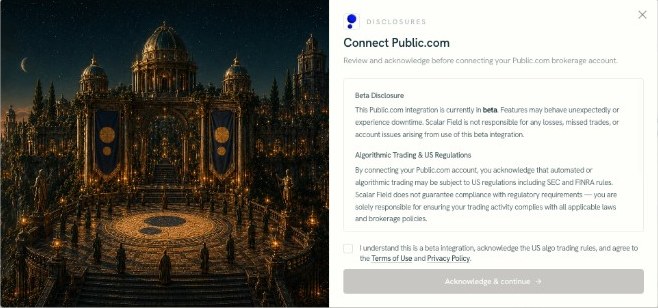
Tick the consent box — “I understand this is a beta integration, acknowledge the US algo trading rules, and agree to the Terms of Use and Privacy Policy” — and click Acknowledge & continue. The button stays disabled until the box is ticked.
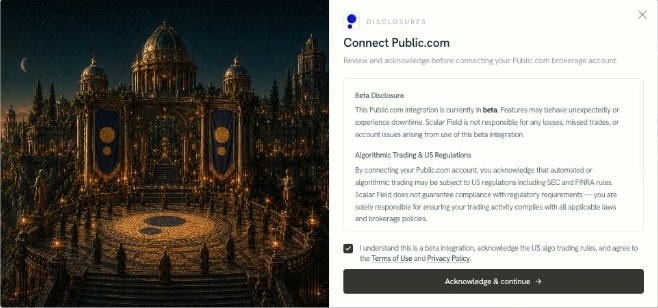 The disclosures modal closes as soon as you continue, and the OAuth popup opens in its place. That is expected: the connection is still in flight, and the Connect button shows a “Connecting…” state while it runs.
Step 4: Authorize on Public.com
A centered popup opens on Public.com’s own site, showing their standard Log in screen with email and password fields. Sign in, complete any two-factor step, and approve the linking request that follows.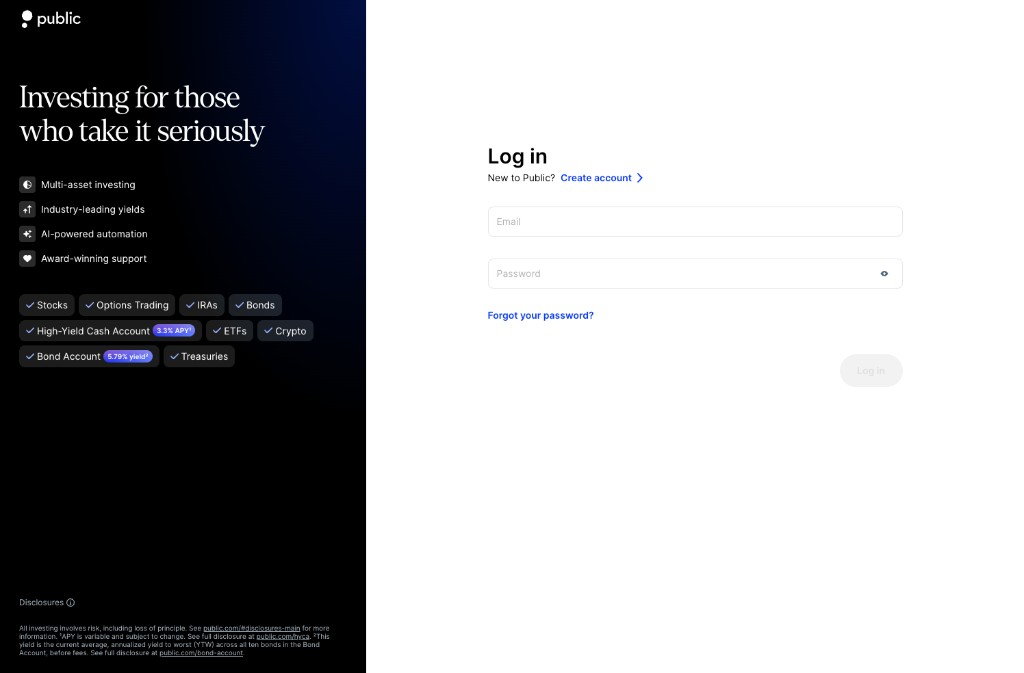 All of this happens on Public.com’s domain. Scalar Field never sees the login form, and the only thing it receives back is a short-lived authorization code.
If your browser blocked the popup, Scalar Field detects that immediately and redirects the current tab to the same authorization page instead. The flow is identical — it just runs full-page, and you are returned to the page you started from when it finishes. This fallback is common enough that you should not treat a full-page redirect as a bug.
All of this happens on Public.com’s domain. Scalar Field never sees the login form, and the only thing it receives back is a short-lived authorization code.
If your browser blocked the popup, Scalar Field detects that immediately and redirects the current tab to the same authorization page instead. The flow is identical — it just runs full-page, and you are returned to the page you started from when it finishes. This fallback is common enough that you should not treat a full-page redirect as a bug.
Step 5: Let the Connection Finish
After you approve, the popup lands on the Scalar Field callback page, which reads “Connecting your Public.com account…” while the server exchanges the code for a token. On success, the popup shows “Public.com account connected!” with the note “This window will close automatically,” then closes itself after about a second. A popup that disappears on its own is the success path, not an error. The page you started from picks up the result even if the popup’s signal is lost, because Scalar Field also polls the server for the account status every two seconds and re-checks whenever the tab regains focus. A connect attempt has a hard two-minute ceiling; after that the UI resets so you can retry cleanly.Step 6: Verify Your Public.com Portfolio
Your account now appears under Your Venues on the portfolio page. Click it, or go toscalarfield.io/portfolio/public.
The page shows your portfolio value alongside three tiles — Buying Power, Cash, and Positions — followed by:
- Positions, with quantity, market value, and unrealized P&L per holding
- Quick Trade, for placing a manual order without leaving the page
- Orders, your recent order history, paginated with a load-more control
How Orders Behave
Public.com is a brokerage venue, so a few execution details differ from crypto or prediction-market venues.- Equities use plain tickers.
AAPLis all you need. - Options use OPRA/OSI symbols. For example,
AAPL260919C00250000. Option positions carry a multiplier of 100, so market value is quantity times price times 100. - Fractional quantities work for equities. To size from a dollar budget, divide the budget by the price and round to two decimals.
- Slippage settings do not apply. The
slippage_bpsparameter is ignored for brokerage venues. - Off-hours orders queue. Anything submitted outside US market hours is held for the next market open.
- Avoid trading manually on Public.com while a strategy is active on the same account. Concurrent manual trades and agent trades can put positions out of sync, which triggers reconciliation.
Troubleshooting
If the popup closes and the page still shows the account as unlinked, give it a few seconds before retrying. Scalar Field keeps polling for eight seconds after the popup closes, because the server-side token exchange can still be running.
How to Disconnect Public.com
Open/portfolio/public and click Disconnect Public.com. The confirmation reads: “This will disconnect your Public.com account from the platform. You can reconnect at any time.”
One guard applies. If any agent currently depends on the account, the disconnect is refused and Scalar Field lists the blocking agents instead of silently breaking them. Pause or reassign those agents first, then disconnect.
Final Checklist
Before you point an agent at the account, confirm:- Beta: You understand the integration is in beta and accepted that disclosure knowingly.
- Authorization: You completed login on Public.com’s own page, including any two-factor step.
- Status: Public.com appears under Your Venues on the portfolio page.
- Data: Positions, buying power, cash, and orders load on
/portfolio/public. - Symbols: You know equities use plain tickers and options use OPRA/OSI symbols.
- Hours: You expect off-hours orders to queue for the next open.
- Exit: You know that agents depending on the account will block a disconnect.