

- How the Robinhood connection works and why it needs a browser extension
- What you need before you start
- How to install the Scalar Field – Robinhood Bridge extension
- How to authorize Robinhood over OAuth
- How to verify positions, buying power, and orders after connecting
- How to troubleshoot a failed connection and how to disconnect
How the Robinhood Connection Works
Scalar Field connects to Robinhood over OAuth. You log in on Robinhood’s own site, and Robinhood hands Scalar Field a scoped token. Your credentials are never shared with or stored by Scalar Field. Robinhood returns that token to a local callback address, so the handshake needs a small helper running in your browser. That helper is the Scalar Field – Robinhood Bridge, a background-only extension you install once from the Chrome Web Store. It activates solely on the Robinhood OAuth callback and stores no personal data.Before You Start
Four things are required. If any one is missing, the connect flow will stop and tell you why.
Two limits are worth knowing before you connect: the integration covers US equities and ETFs, and margin is not supported. Your buying power in Scalar Field reflects cash only, and neither agents nor manual trades can use Robinhood margin or day-trade leverage.
Step 1: Open Your Portfolio
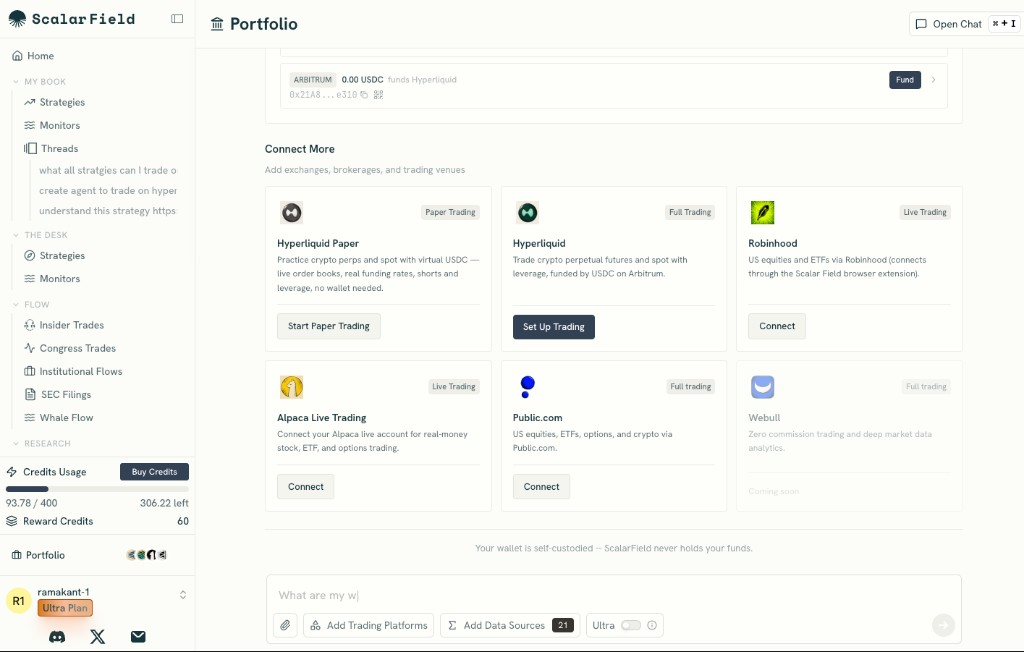
Sign in to Scalar Field and click Portfolio in the left sidebar, or go directly toscalarfield.io/portfolio.
Scroll to the Connect More section, headed “Add exchanges, brokerages, and trading venues.” Every available venue lives here.
Step 2: Click Connect on the Robinhood Card
Find the Robinhood card. It carries a Live Trading badge and the description “US equities and ETFs via Robinhood (connects through the Scalar Field browser extension).” Click Connect.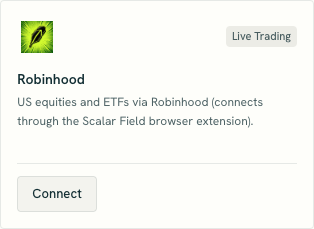
Step 3: Install the Robinhood Bridge Extension
The connect modal opens on the extension step with two numbered instructions: install the Scalar Field – Robinhood Bridge extension, then click Add to Chrome. Click Install Extension. The Chrome Web Store opens in a smaller window on top of Scalar Field, so you never lose your place. Until the extension is installed, the modal shows a status pill reading Extension not detected yet.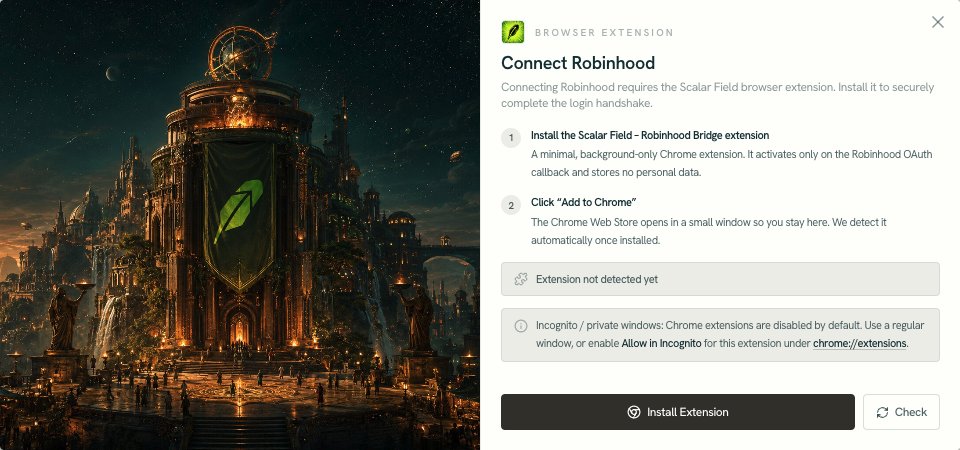 In the store window, click Add to Chrome, confirm the permission prompt, then close that window and return to Scalar Field.
Step 4: Let Scalar Field Detect the Extension
Scalar Field re-checks automatically when you return to the tab. As soon as the extension answers, the modal advances to the disclosures step on its own. You do not need to click anything. If it stays on the install step, click Check. That opens a small popup which reloads the page context so the newly installed extension can respond. This is the most common snag: a tab that was already open before you installed the extension cannot see it, so a hard refresh fixes it too.Step 5: Review and Accept the Disclosures
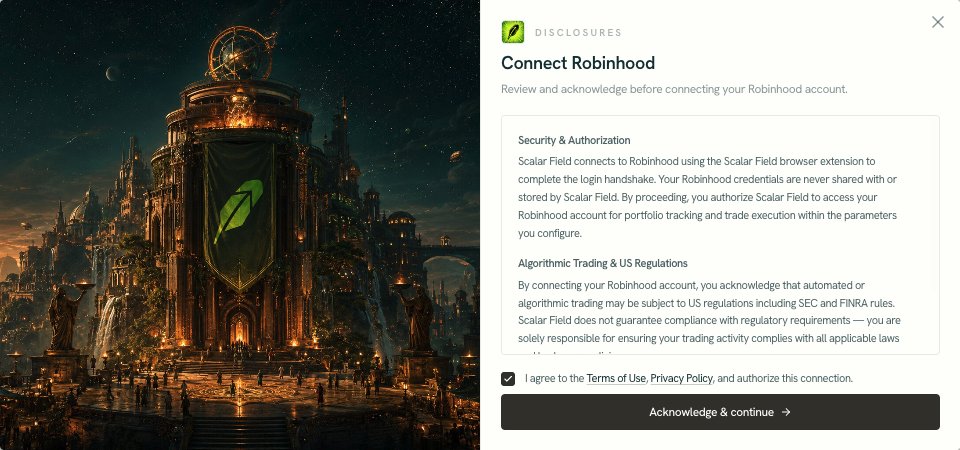
The disclosures step lists three items. Read them before continuing.
Tick “I agree to the Terms of Use, Privacy Policy, and authorize this connection” and click Acknowledge & continue.
Step 6: Authorize on Robinhood
A popup opens on Robinhood’s own login page, headed Log in to Robinhood. Robinhood shows its own confirmation there: “Log in to link your account. We won’t share your username or password with third-party apps.” Sign in with your email and password, or use Log in with passkeys, then approve the request. If your account has two-factor authentication, you complete that here as well. All of this happens onrobinhood.com.
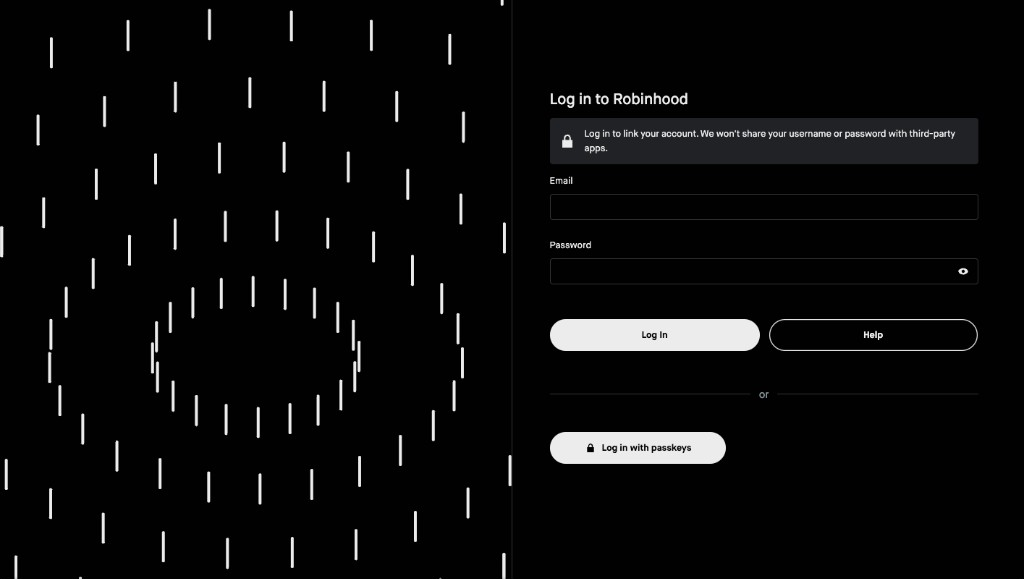
Step 7: Let the Connection Finish
When you approve, the bridge extension captures the callback and closes the popup itself. A popup that disappears on its own is the expected success path, not an error. Scalar Field then polls for confirmation while the token exchange completes on the server. This normally takes a few seconds, and it will keep waiting up to three minutes before giving up. Stay on the page until the Robinhood card shows as connected.Step 8: Verify Your Robinhood Portfolio
Your account now appears under Your Venues on the portfolio page. Click it, or go toscalarfield.io/portfolio/robinhood.
The page loads your portfolio value, buying power, cash, and position count, followed by a Positions table, a Quick Trade panel, and your recent Orders. You will also see the Margin trading not supported notice: “Buying power reflects cash only. Agents and manual trades cannot use Robinhood margin or day-trade leverage.”
Once the positions table populates, your agents and strategies can trade through Robinhood.
Other Ways to Connect Robinhood
The portfolio page is not the only entry point. The same flow is available from:- Chat. The Connect a platform card lists Robinhood with a Connect button, and shows a Connected badge once linked.
- The invest flow. When you deploy a strategy, the Choose Account step lets you connect Robinhood inline.
- Add Trading Platforms. This menu lists Robinhood under Brokerages and takes you to the Robinhood portfolio page.
- The Robinhood page directly. Visiting
/portfolio/robinhoodwhile unlinked shows an Account Not Connected notice with a Connect Robinhood button.
Troubleshooting
How to Disconnect Robinhood
Open/portfolio/robinhood and click Disconnect Robinhood. The confirmation reads: “This will disconnect your Robinhood account from the platform. You can reconnect at any time.”
Disconnecting revokes Scalar Field’s access. Reconnecting uses the same flow described above, and because the extension stays installed, it is considerably faster the second time.
What to Know Before Trading Through Robinhood
- Instruments. US equities and ETFs.
- Margin. Not supported. Buying power reflects cash only, and neither agents nor manual trades can use margin or day-trade leverage.
- Credentials. Never collected or stored. Authorization happens on Robinhood’s site and can be revoked by disconnecting.
- Cancellations. Scalar Field will attempt to cancel an order with Robinhood, but orders already in execution may not be cancellable.
- Scope. The agent only does what its mandate and risk limits allow. Connecting a broker does not hand an agent unlimited authority.
Final Checklist
Before you rely on the connection, confirm:- Browser: You are on desktop Chrome or Brave, in a regular window.
- Extension: The Scalar Field – Robinhood Bridge is installed and enabled.
- Authorization: You completed login on Robinhood’s own page, including any two-factor step.
- Status: Robinhood appears under Your Venues on the portfolio page.
- Data: Positions, buying power, and orders load on
/portfolio/robinhood. - Limits: You understand that margin is unavailable and buying power is cash only.
- Exit: You know where Disconnect Robinhood lives if you want to revoke access.